GUIDE
How to record and transcribe Chinese on iPhone
Start a recording in Voicen, speak in Chinese, then stop and save it to create a text note. Apple Speech is the default transcription option and needs no API key. This guide covers new recordings made in Voicen, rather than importing audio from another app. The current release focuses on Chinese speech; an English interface does not imply the same transcription quality for English speech.
Before your first recording
Install Voicen on an iPhone running iOS 18 or later. Allow microphone access, and grant speech recognition permission if iOS requests it. The default Apple Speech path requires on-device recognition support for your device and selected language. Newer supported devices also need the relevant system speech model.
Select your language and prepare any required models while the app is open. Recording does not wait for a model download. First try a short Chinese recording in a quiet room and confirm that a transcript appears. Check names, numbers, and specialist terms against the audio.
Record, transcribe, and review
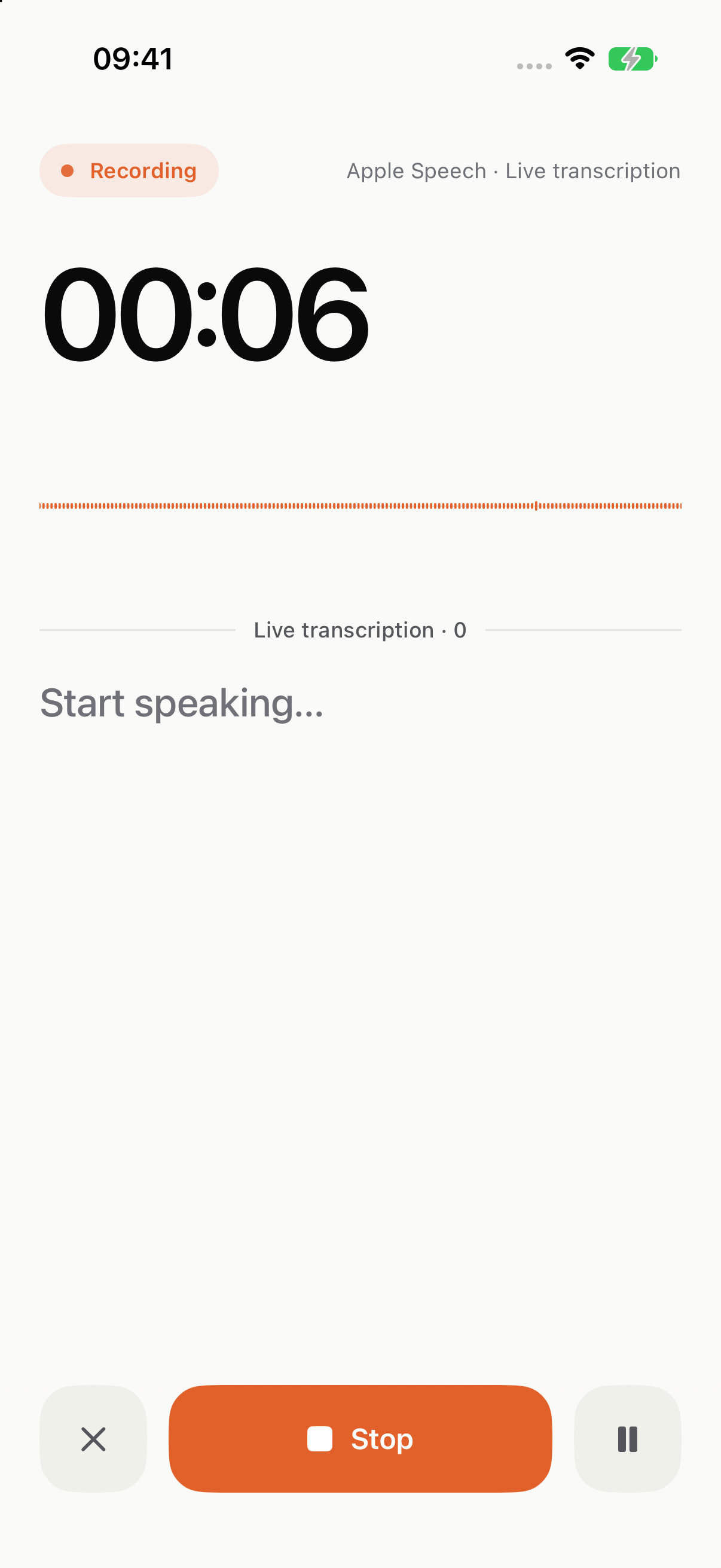
- Start recording. Open Voicen and tap its recording control. Check that the recording status and timer are visible.
- Speak your note. Say the topic, then the details. Live text is a preview when supported; the saved audio is used for the final transcript.
- Stop and save. Tap the stop control at the bottom of the recording screen. Return to the list while the note finishes processing.
- Review the result. Open the note, read the original transcript, and replay the audio to verify important details. Use the copy action to take the text into another app.
What is free, and when do I need an API key?
Voicen is free and requires no account. Default Apple Speech transcription needs no API key. Recording, reading the original transcript, replaying audio, and copying text do not require an AI provider.
Cloud transcription and LLM polishing are optional. If you enable either, you supply your own provider credentials and pay that provider under its terms. Voicen does not include hosted AI credits. A free app does not make a third-party API free.
Transcription and polishing do different jobs
Transcription turns speech into text. Polishing uses an LLM you configure to organize the wording or structure after transcription. You can keep the original transcript without enabling polishing.
When enabled, polishing sends transcript text to your selected provider. Review the result before relying on it, particularly names, dates, amounts, and quotations. For an illustrative before-and-after example, see turning spoken reading notes into organized text.
Local processing or a cloud provider?
- Default Apple Speech: uses on-device recognition and needs no API key. Availability depends on the device, language, and model readiness.
- Optional cloud transcription: requires a network connection and your own valid provider credentials. Audio is sent to that provider and its charges apply.
- Optional LLM polishing: sends the transcript to your chosen text provider. Configure it separately from transcription.
Notes are stored on your iPhone, but local storage does not mean every processing option stays on the device. Read the privacy policy for the distinction. Before relying on offline transcription, prepare your models and test a complete recording with your device disconnected from the network.
When is Voicen useful alongside built-in recording tools?
If your current tool already handles your recordings and transcripts, you may not need another app. Voicen is intended for new voice notes that keep the audio and original transcript together, with optional re-polishing through your own model and quick recording entry points.
Try a short recording to decide whether the result and workflow fit your needs. This guide makes no accuracy ranking between apps. A polished note should not be treated as a verbatim record.
If no transcript appears
Open the note and read its error message. Check microphone access and speech recognition permission when requested. For Apple Speech, check language support and model readiness. For cloud services, check the network, credentials, provider account, and active provider selection.
If the note was saved, use its retry action after fixing the problem. A polishing failure is different from a transcription failure: when the original transcript is available, you can use it while fixing the polishing configuration.
For faster access, set up Action Button or Control Center recording.